

Logging in to Manage Comics Oryx is quick and simple. Each staff member gets their own account, so you can keep activity organized and secure. In this guide, we’ll cover the browsers we recommend and walk you through the login process step by step.
System Requirements:
Manage Comics requires a web browser, an internet connection, and the ability to read CSV (comma separated values) files. We do not recommend opening CSV files in Excel.
Required:
Internet Connection*
Web Browser
Supported spreadsheet viewer that doesn't automatically turn large numbers into scientific notation
* Internet connection required while using Manage Comics - In the event the internet goes down? Manage Comics is mobile compliant as well, and will work on a phone, tablet, or tethered laptop. If internet connectivity is an issue for you, Manage Comics may not be the right tool for you.
Supported browsers
Google Chrome (latest version)
Mozilla Firefox (latest version)
Microsoft Edge (latest version)
Safari (latest version on Mac and iOS)
We recommend enabling automatic updates to ensure you’re always running the most secure and reliable version of your browser.
Getting Started
Logging in for the first time
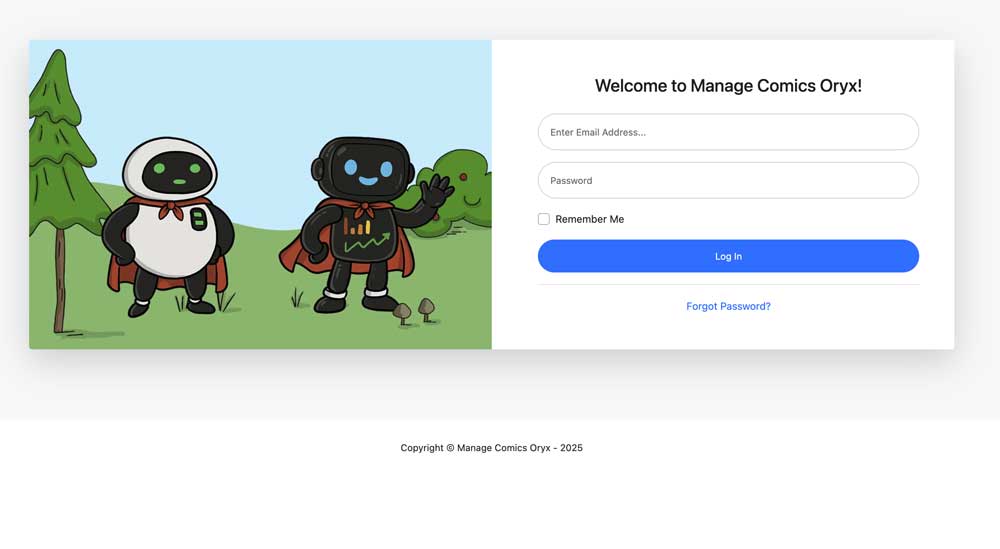
Open your browser and go to the Manage Comics Oryx login page. https://oryx.managecomics.com/
Enter your email address and password provided during setup. *
Click Log In to access your store’s dashboard.
*(Self sign-up coming soon)
Password reset
If you forget your password, click the Forgot Password link on the login page. Enter your email, and you’ll receive instructions to reset your password securely.
Tips
Bookmark your Oryx login page so you can get to it quickly.
Each staff member should use their own account — this helps track activity and keep your store secure.