

Export Your Data from ComicSuite
To begin the process, you'll need two key files from ComicSuite: your customer list and your subscription list.
The best way to get your Customer data out of Comic Suite is with a simple SQL dump, but the second best is RMH's customer export.
Step 1 (option a): 📁 Export Your Customers (basic, not a great way)
Open Store Manager in RMH.
Navigate to Customers > Export to Excel.
Save the file to your desktop or another easily accessible location.
This will not give you the best results...but if you have no gurus, and we're swamped with emails (we're probably swamped with emails),
Step 1 (option b): 📁 Export Your Customers (RECOMMENDED)
CAUTION: This requires SQL access, if you do not have the ability to open SQL explorer, please talk to your resident Guru, if you need us to Gu Ru For U, please send an email to help@managecomics.com so we can discuss how to proceed.
1. Open SQL Explorer
2. Run the following Query (replacing **DATABASENAME** with the name of your database).
IMPORTANT: Do not change any of the fields, don't change orders, don't add fields, don't take away fields.
/****** Script for EXPORTING ALL CUSTOMERS RM ******/SELECT[AccountNumber], [FirstName], [LastName], [EmailAddress], [PhoneNumber], [Address], [Address2], [City], [State], [Country], [Zip], [AccountBalance], [CreditLimit], [totalsales], [totalvisits], [CurrentDiscount], [pricelevel], [taxexempt], [notes], [vouchers], [limitpurchase], [layawaycustomer]FROM [DATABASENAME].[dbo].[Customer];3. Save as a CSV (with headers if possible).
4. Proceed to Exporting your Subscription List
Step 2: 📦 Export Your Subscription List
Open Comic Suite.
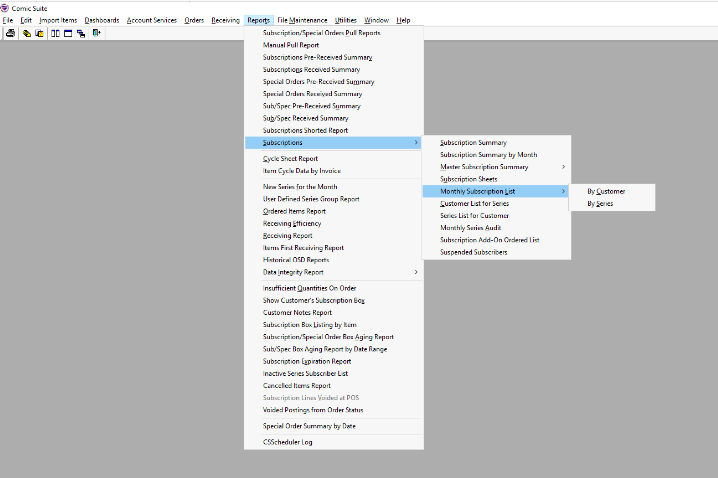
From the top navigation menu, go to:
Reports > Subscriptions > Master Subscription Summary > By CustomerClick File > Save As and choose CSV format.
Save this file to your desktop or another easy-to-find location.
🖼️ Below is an image of where to find the Subscription List in ComicSuite.
Congratulations! You are done the Export steps.
Your next step is to import your data into Manage Comics Oryx.
NEXT: How to Import Customers and Subscriptions into Manage Comics Oryx