

Before You Start:
Make sure that you have a Customer file, and a Subscriber file from ComicSuite.
See: Export Customers and Lists from Comic Suite
So you've got your data from ComicSuite! Let's get that data into Manage Comics!
Importing Customers and Subscriptions into Manage Comics Oryx is straight forward. If you follow this step-by-step guide, you should not have any problems.
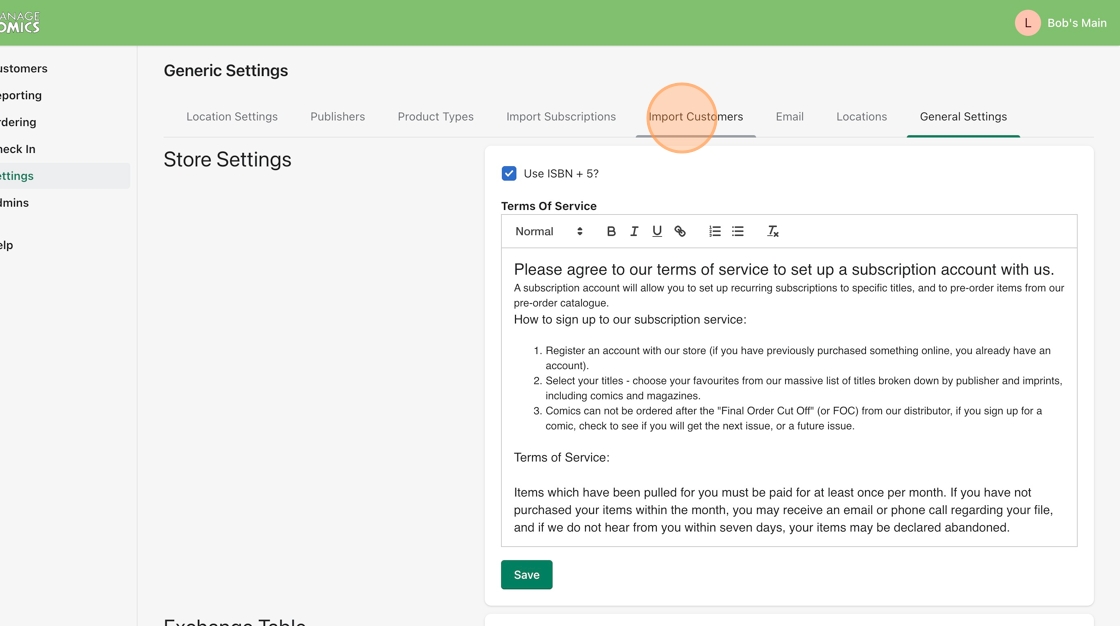
To get started we will navigate to Settings...and we'll click "Import Customers".
On the Import Customers page, make sure that you select the right type of subscription import.
Comic Suite
Manage Comics
Pullbox
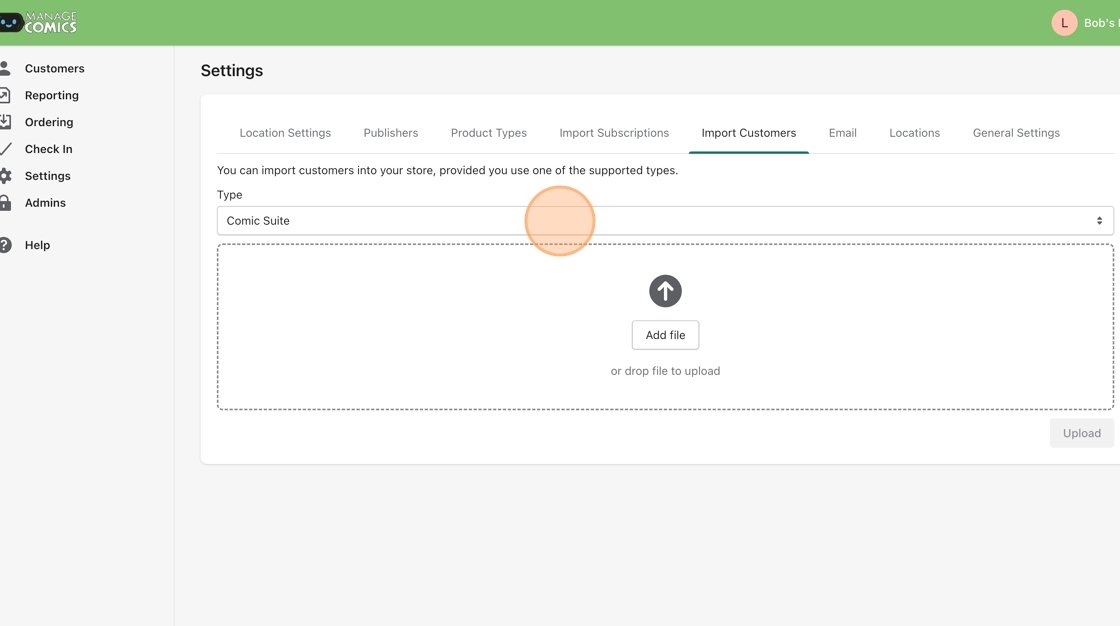
We have chosen a ComicSuite import for this test.
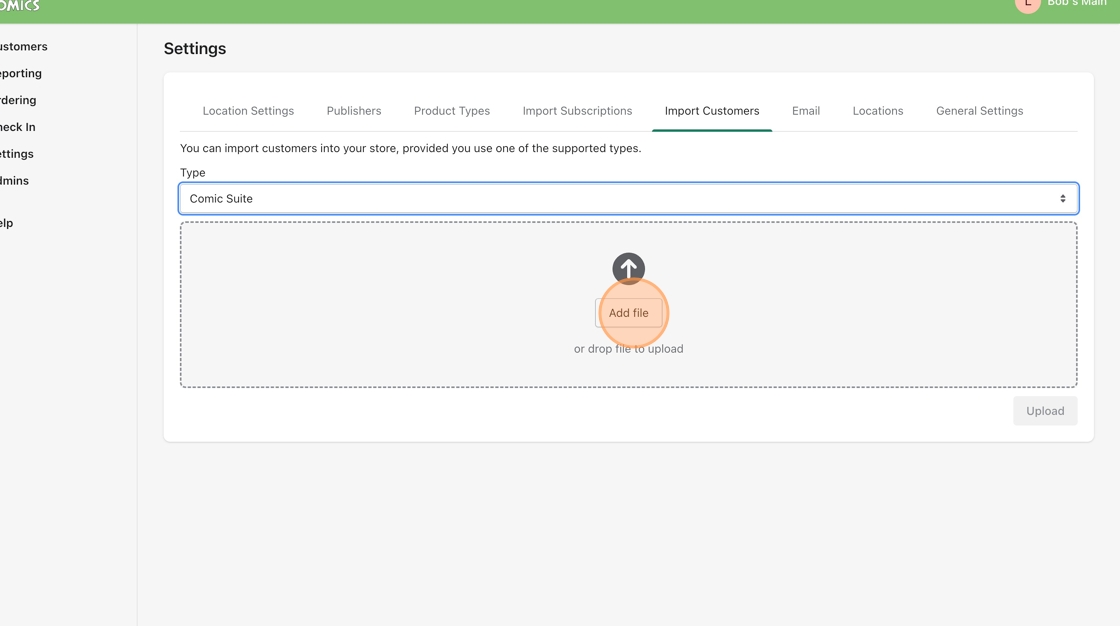
Find the file on your computer and either drag it into this box, or click the "Add File" button and navigate to the file that way.
Then click "Upload".
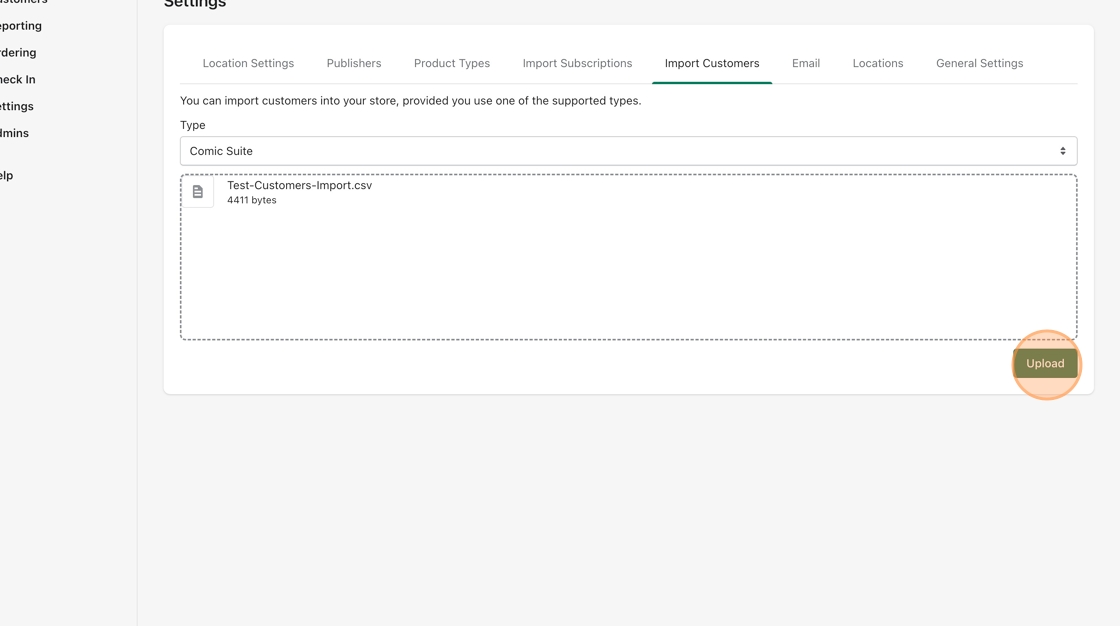
The file will be uploaded, and you'll get a "Success" file in a few seconds.
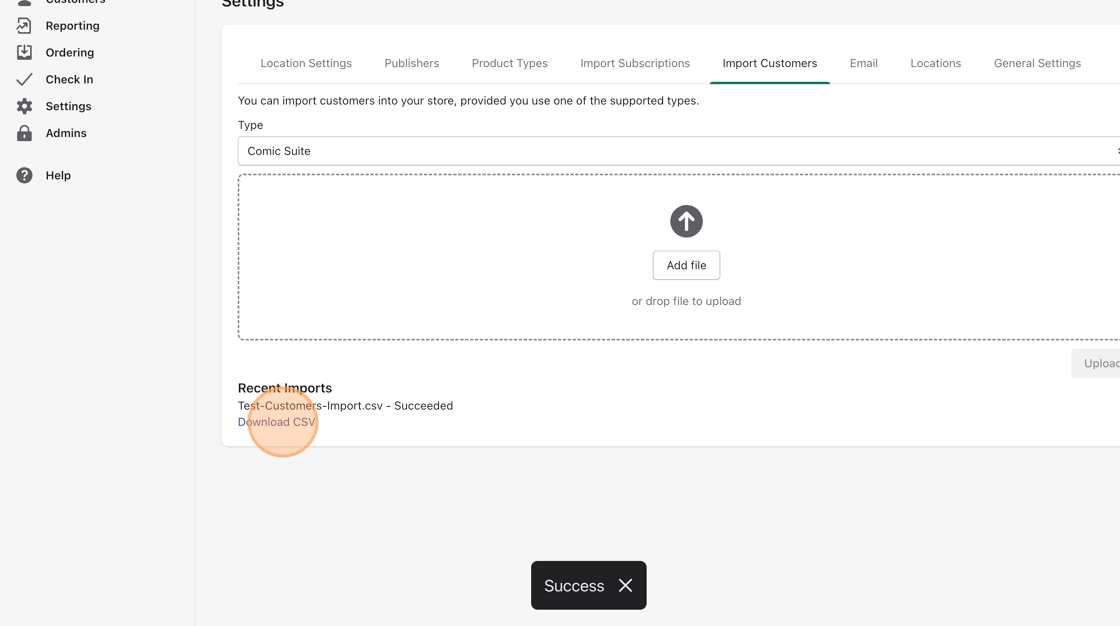
Download the Success CSV and review it to make sure that everything worked
Once you are ready to move on, click "Import Subscriptions" to begin with subscriptions.
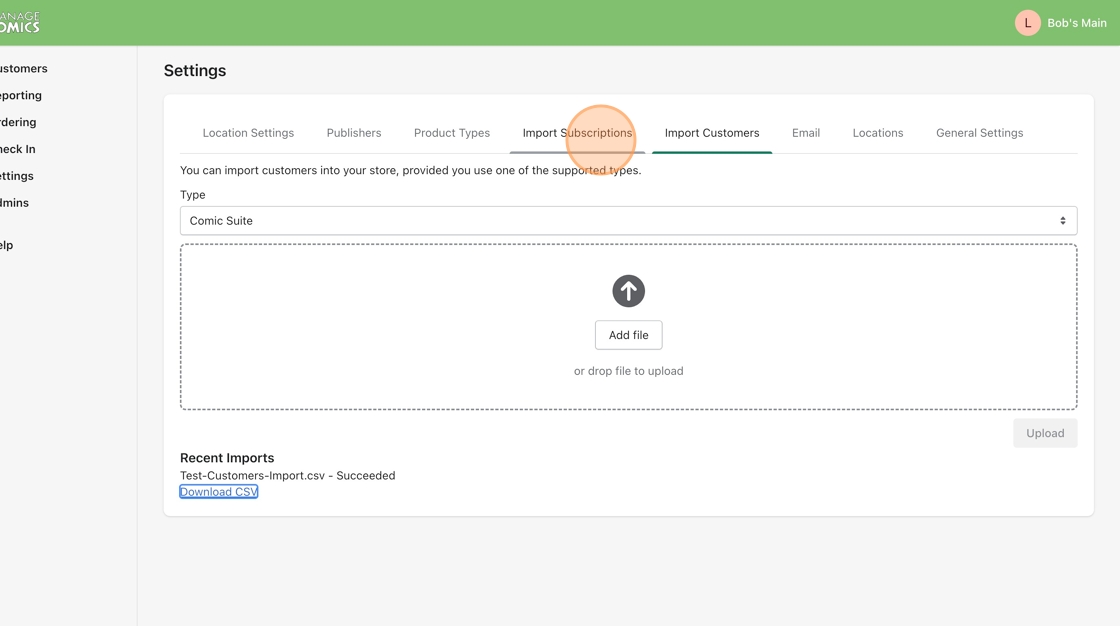
7. Now we're going to navigate to Import Subscriptions. Make sure we have the correct import type selected (Comic Suite in this example), and we'll add our subscriptions file (the same way we added our customers file).
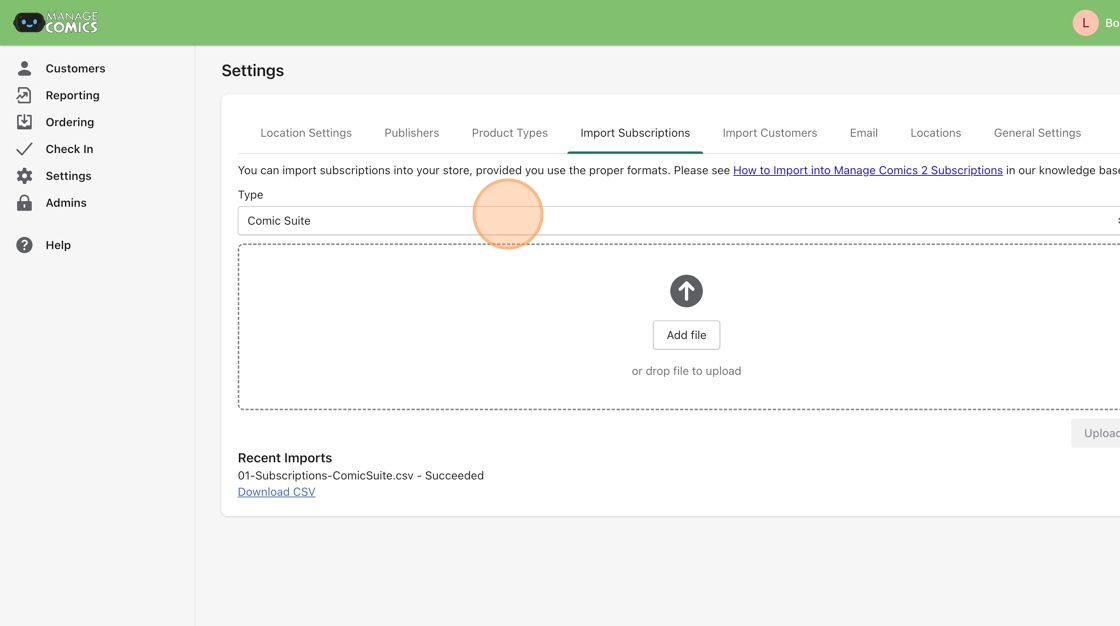
8. Click the Upload button to move to the next step.
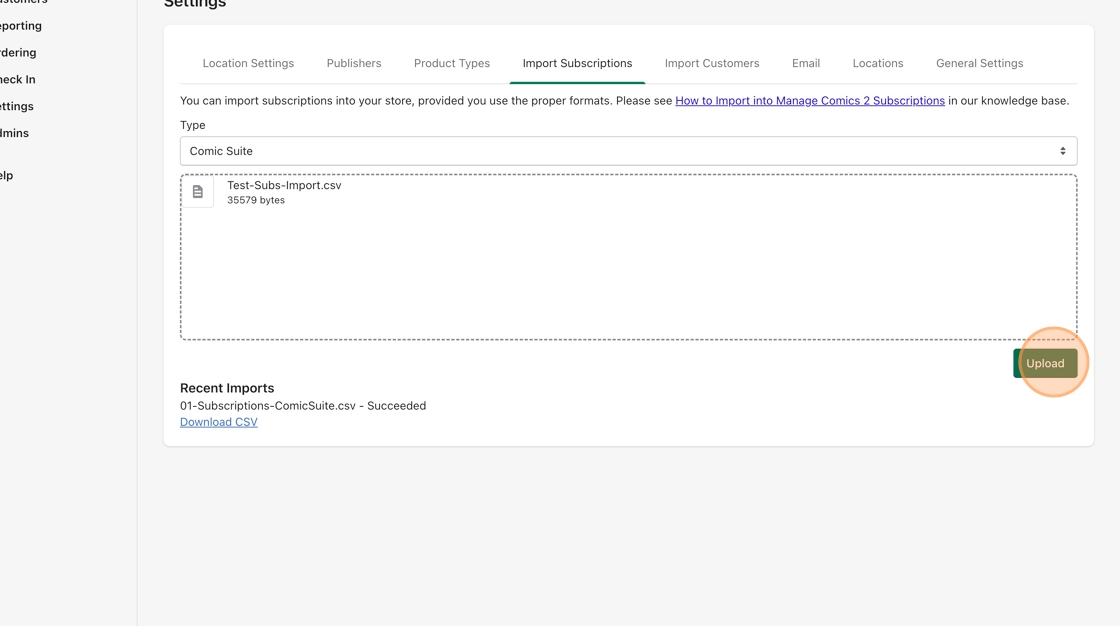
9. In a few moments we will have a downloadable CSV of our success.
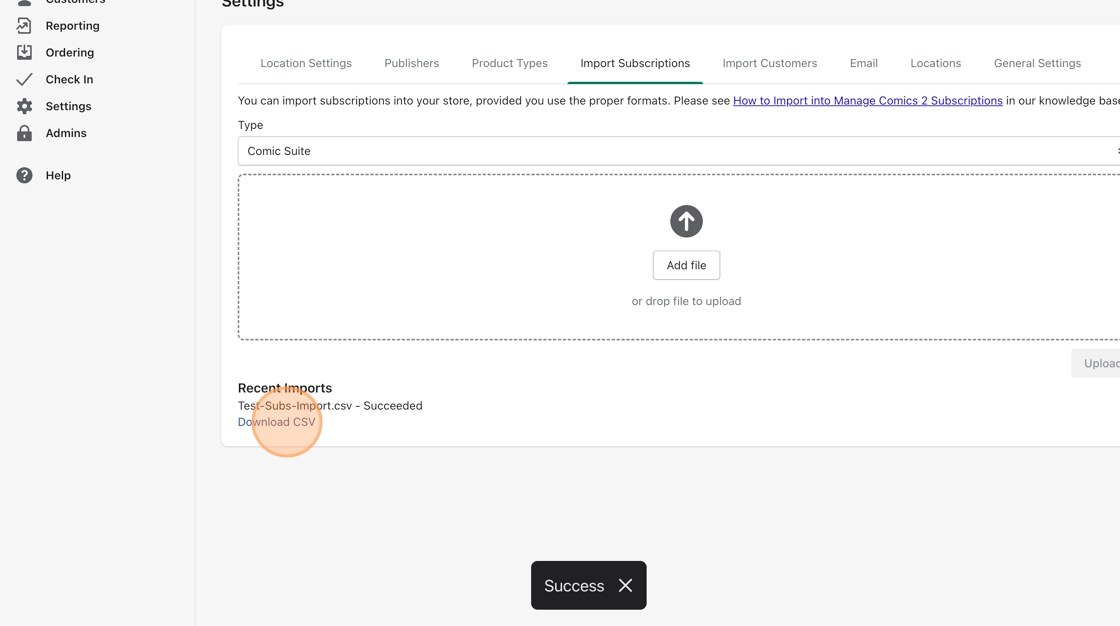
10. That will tell us which subscriptions succeeded and which failed in a simple CSV file.
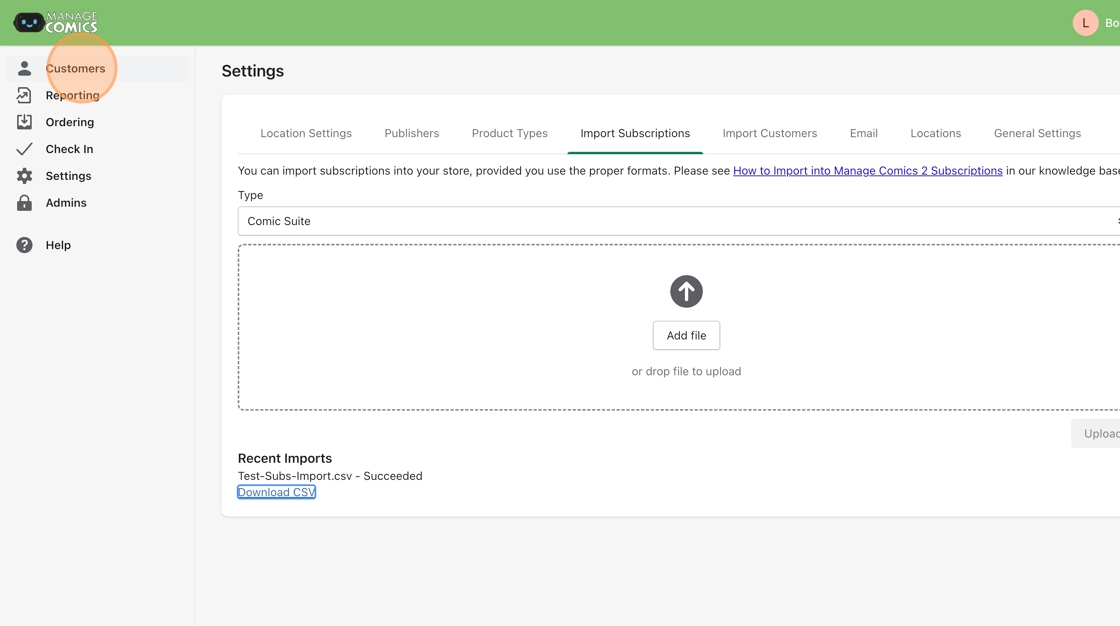
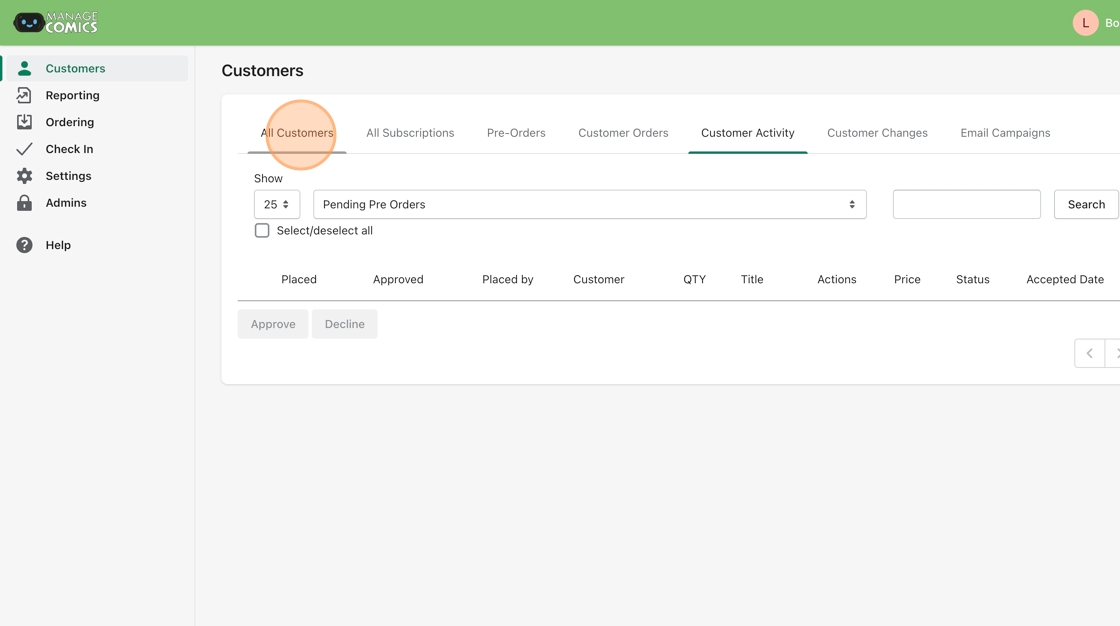
11. Next navigate to Customers > All Customers.
12. If you click "Edit" next to any customer, you'll see all of the subscriptions they have.
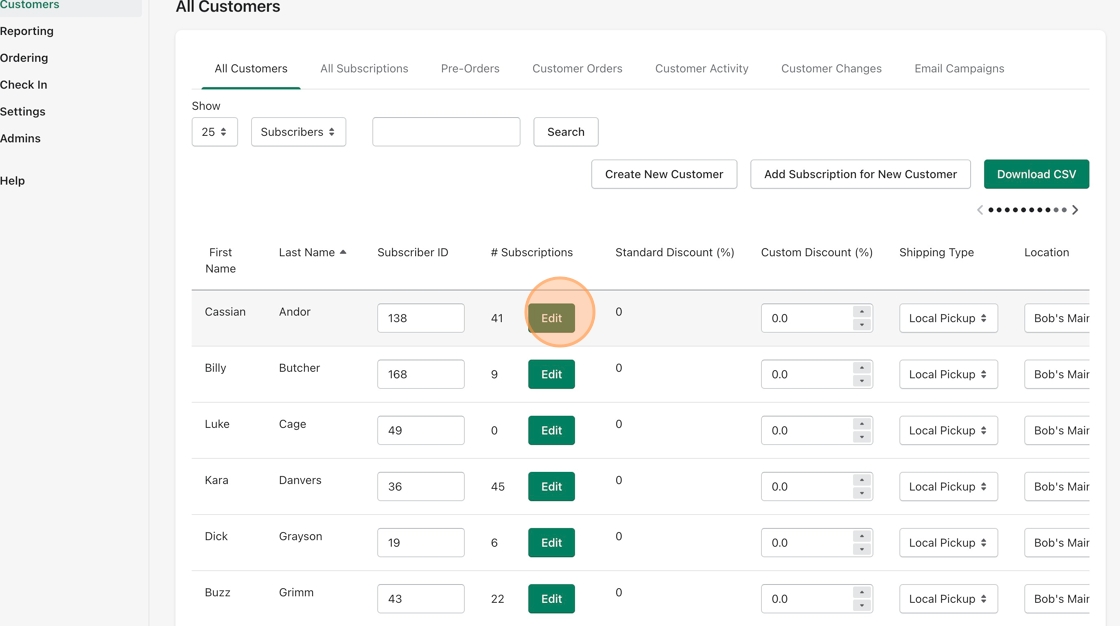
Tip: Congratulations! You successfully added customers and subscriptions!