

Migrating from Classic to Manage Comics Oryx takes a few steps, but is a relatively straightforward process.
You'll start by downloading your customer lists and subscriptions from Classic.
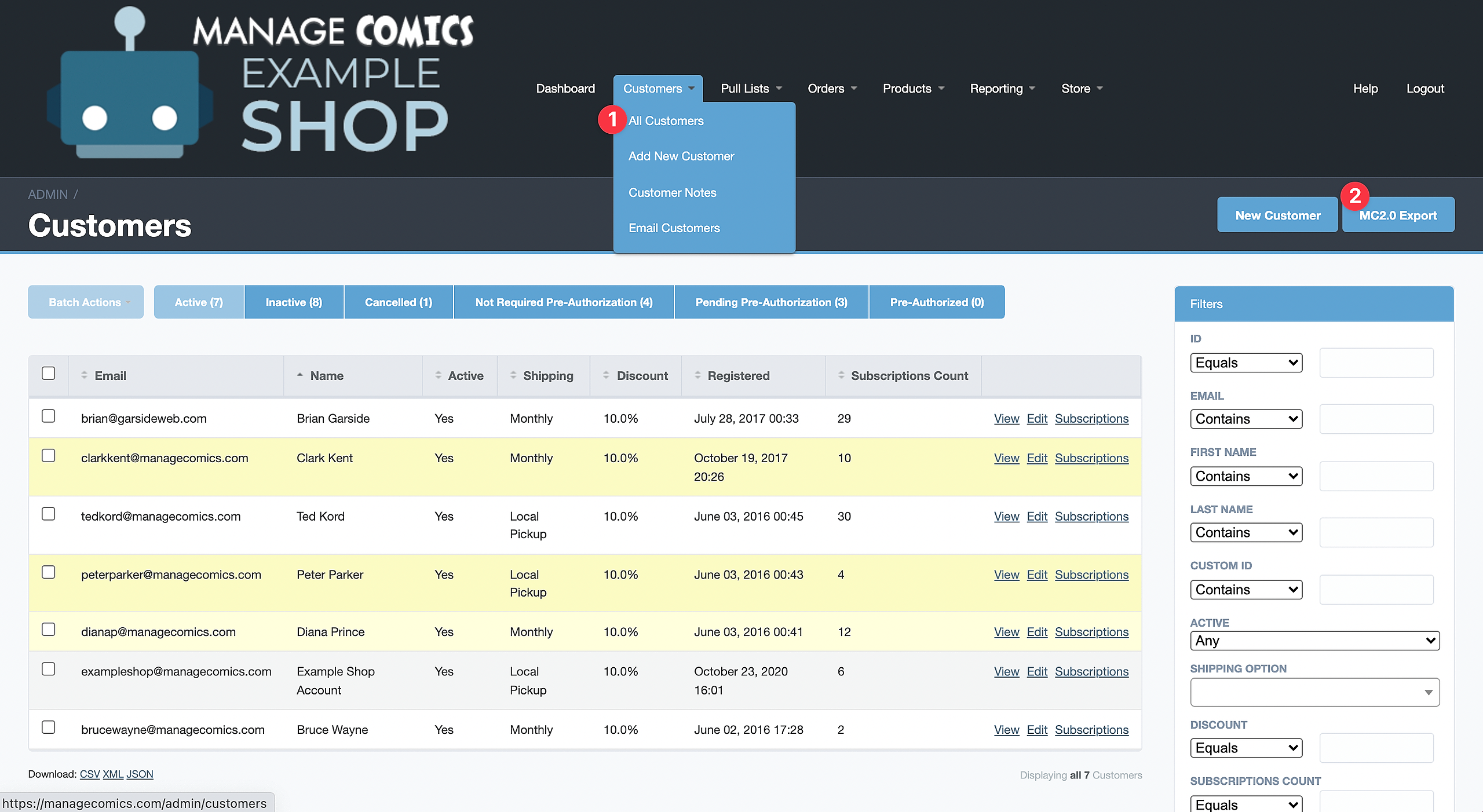
Step 1: Manage Comics Classic - Navigate to Customers
Click All Customers
Select MC 2.0 Export
Save to Desktop
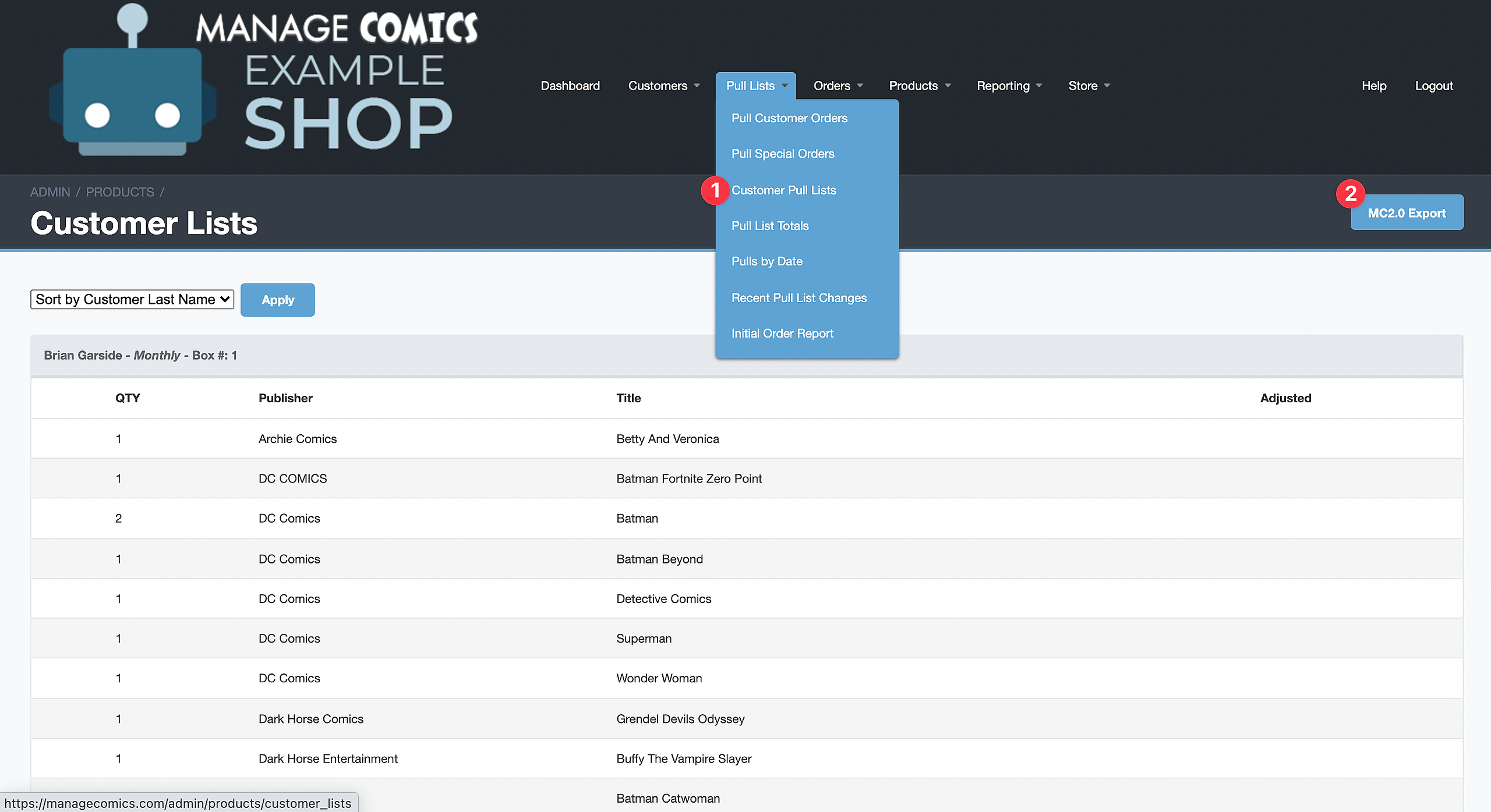
Step 2: Manage Comics Classic - Navigate to Subscriptions
Click on Pull Lists > Customer Pull Lists
Click MC2.0 Export
Save to Desktop
Step 3: Manage Comics Oryx - Navigate to Settings > Import Customers
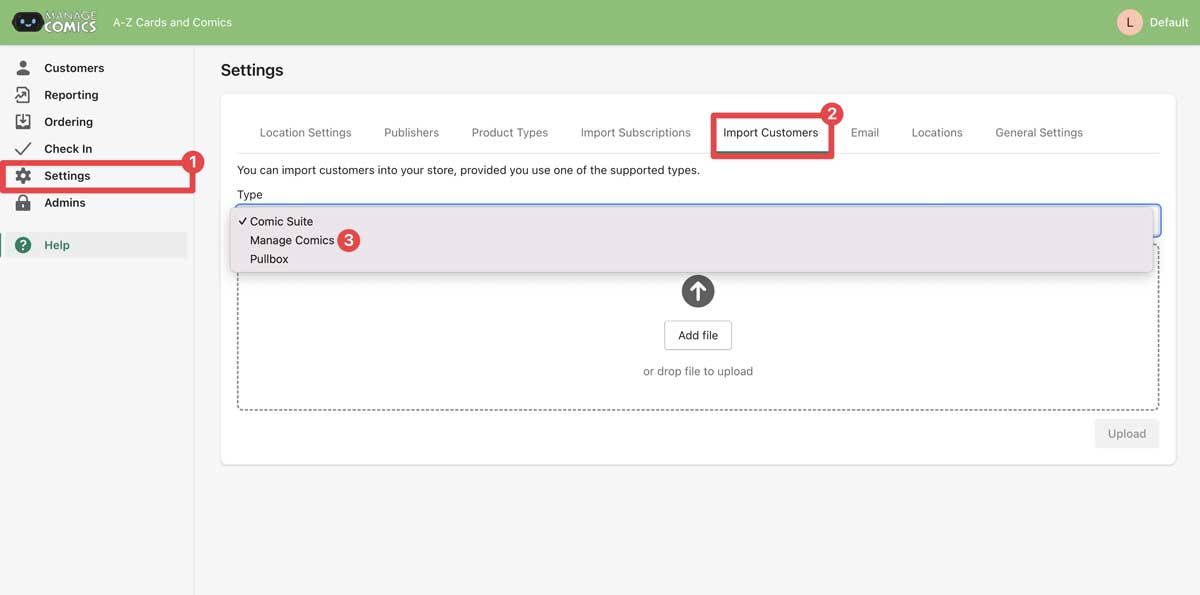
Go to Settings
Import Customers
Choose "Type" of Manage Comics
Drag your Customers file into the file area.
Click Upload.
You will get a confirmation file that you can download and review.
Step 4: Manage Comics Oryx - Navigate to Settings > Import Subscriptions
Go to Settings > Import Subscriptions in Manage Comics Oryx
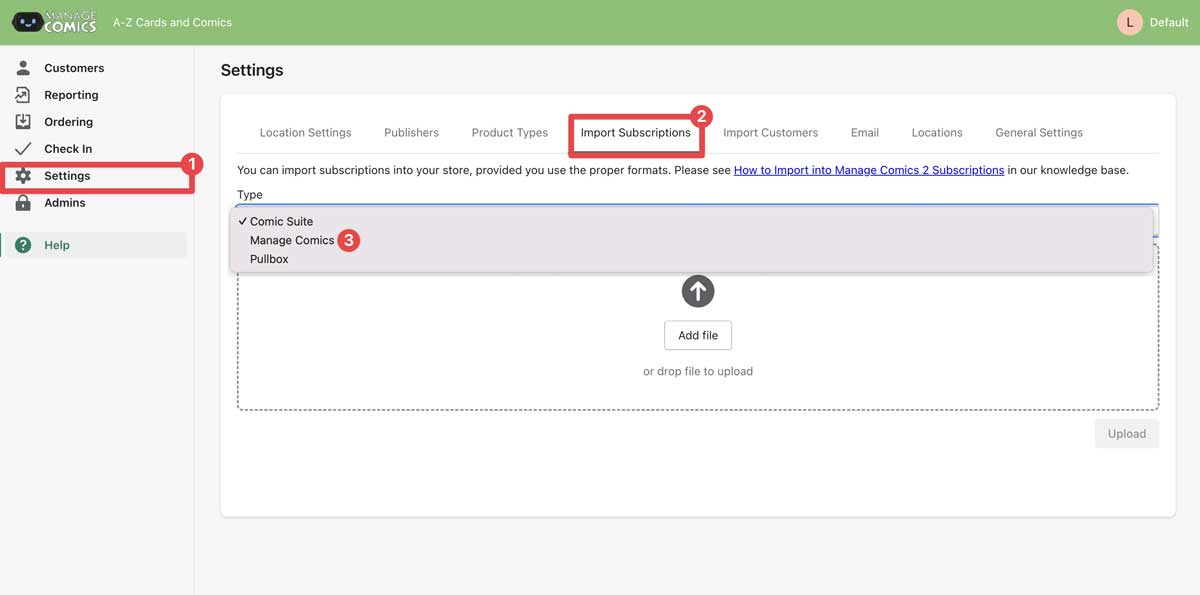
Go to Settings
Import Subscriptions
Choose "Type" of Manage Comics
Drag your Subscriptions file into the file area.
Click Upload.
You will get a confirmation file that you can download and review.
Step 5: Navigate to Customers > Customer Lists to review all lists
You're done! You've successfully imported all Manage Comics classic accounts.
Send us an email (hit Contact in the upper right hand side) and we will forward all cu