

Overview & When to Use
What this feature does
The All Subscriptions page displays every active subscription in your system, organized by title and then location. You can view subscription details, edit individual subscriptions, add or remove items, and manage subscription statuses across many customers for the same title from a single interface.
When to use it
When you need to view all subscriptions for a specific title
When managing subscription changes for multiple customers at once
When reviewing subscription totals and identifying popular titles
When troubleshooting subscription issues or discrepancies
Prerequisites
Customer accounts must be created and active
Store locations must be properly configured
Key terms
Active Subscription – A customer's ongoing pull list that receives new issues automatically
Subscription Status – Current state of a subscription (Active, Inactive)
Pull List – Another term for customer subscription or pull box
All Locations Filter – Option to view subscriptions across all store locations
How to Use All Subscriptions
Step-by-step
Navigate to Customers → All Subscriptions from the main menu.
Use the location dropdown to filter subscriptions by specific store location or select "All Locations" to view everything. (Multi-Location)
Use the search bar to find specific titles.
Click on any title to see all subscribers to the title.
To edit a subscription, click the Title Name to open the title
Add new customers to the subscription using the search functionality.
Remove items by clicking the Remove button next to any customer name.
Use the Clone Actions menu to clone customers FROM another series or INTO this series.
Changes happen automatically.
What you should see
Complete list of all series
Customer information for subscriptions including name
Subscription details showing all subscribed titles and their current status
Search and filter options for quickly finding specific subscriptions
Bulk action options for managing multiple subscriptions simultaneously
Screenshot
Tips
Use the location filter to focus on specific store locations when managing subscriptions
Search by a portion of a title to quickly find specific subscriptions
Use bulk actions to efficiently manage multiple subscriptions at once (see Cloning Subscriptions)
Cloning Subscriptions
When the Phenomenal Platypus stops and Uncanny Platyplodes begins, you can quickly transfer all of those customers over to the new title with one click!
Clicking on a title within All Subscriptions gives you the option to clone subscriptions from another title into a new title.
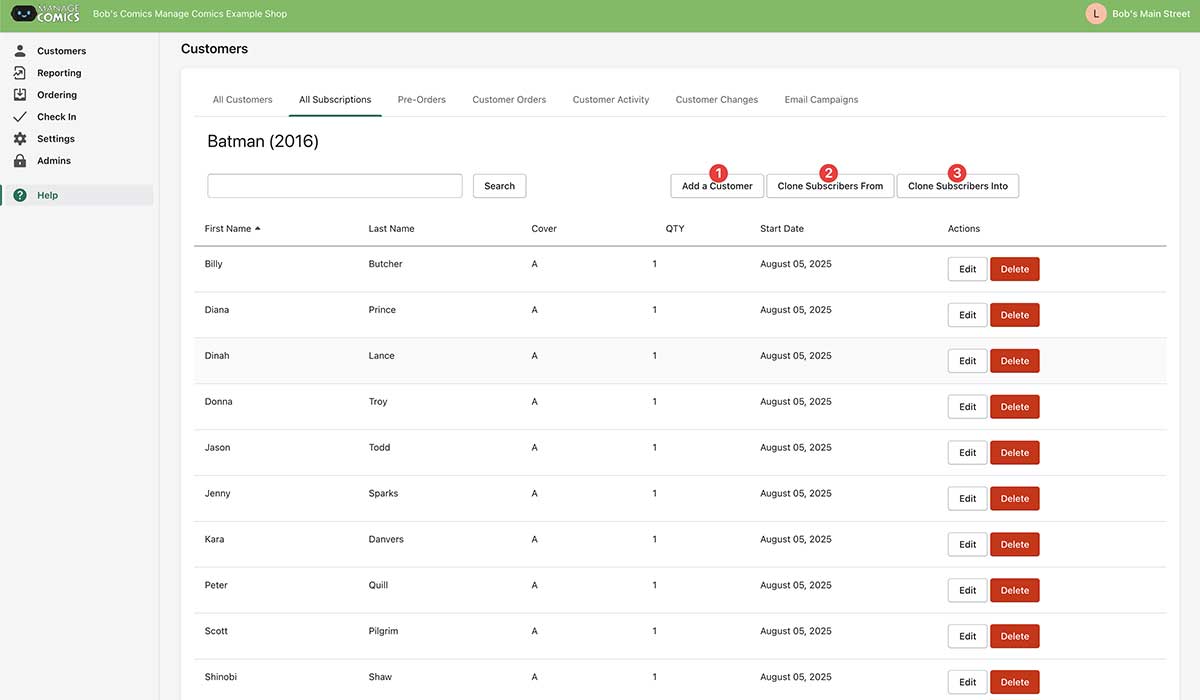
From this page you can add a customer (1), clone subscribers FROM (2) another title (for example if you wanted to clone them FROM Nightwing into Batman (2016) because Dick Grayson had taken over the role of Batman again as he deserves to do), or clone subscribers from the title you are currently in, INTO another title (3)
For this we'll clone INTO another title.
Right now we're in Batman (2016), we currently have 11 subscribers, and we'd like to move these folks INTO Batman (2025).
We click "Clone Subscribers Into" (3), and a modal window pops up.
In this window we'll search (1) for a title, in this case Batman, and we'll look for Batman (2025). We clone subscribers (2).
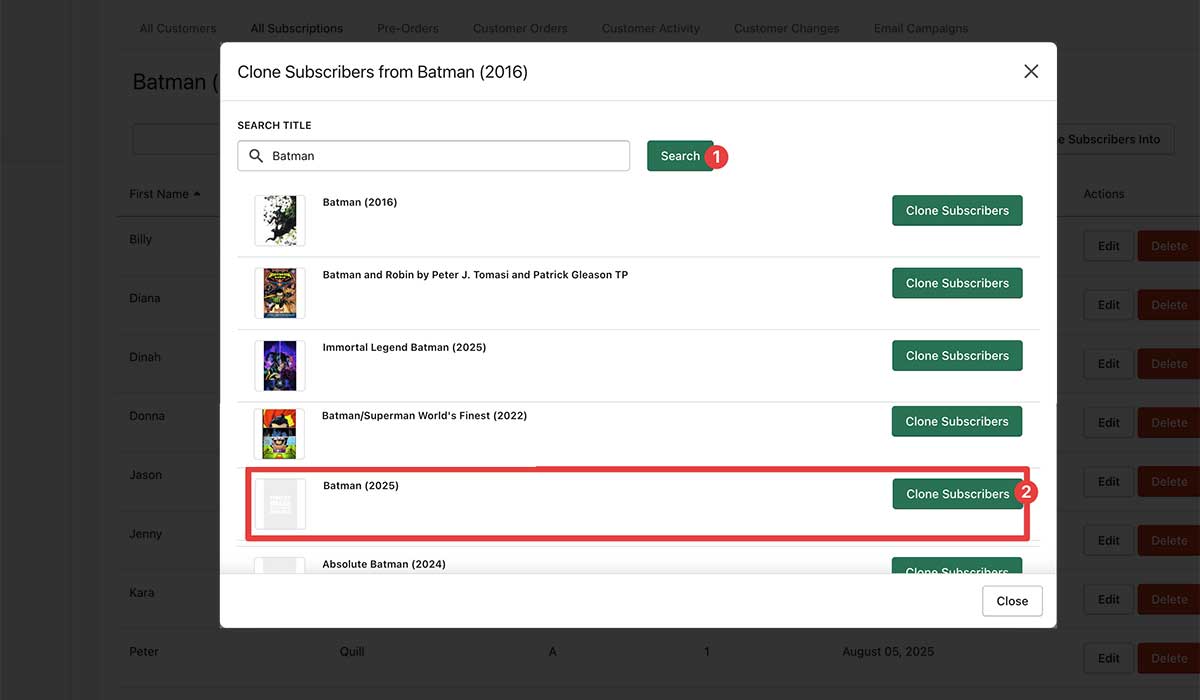
If they're already on this list, they won't get doubled up.
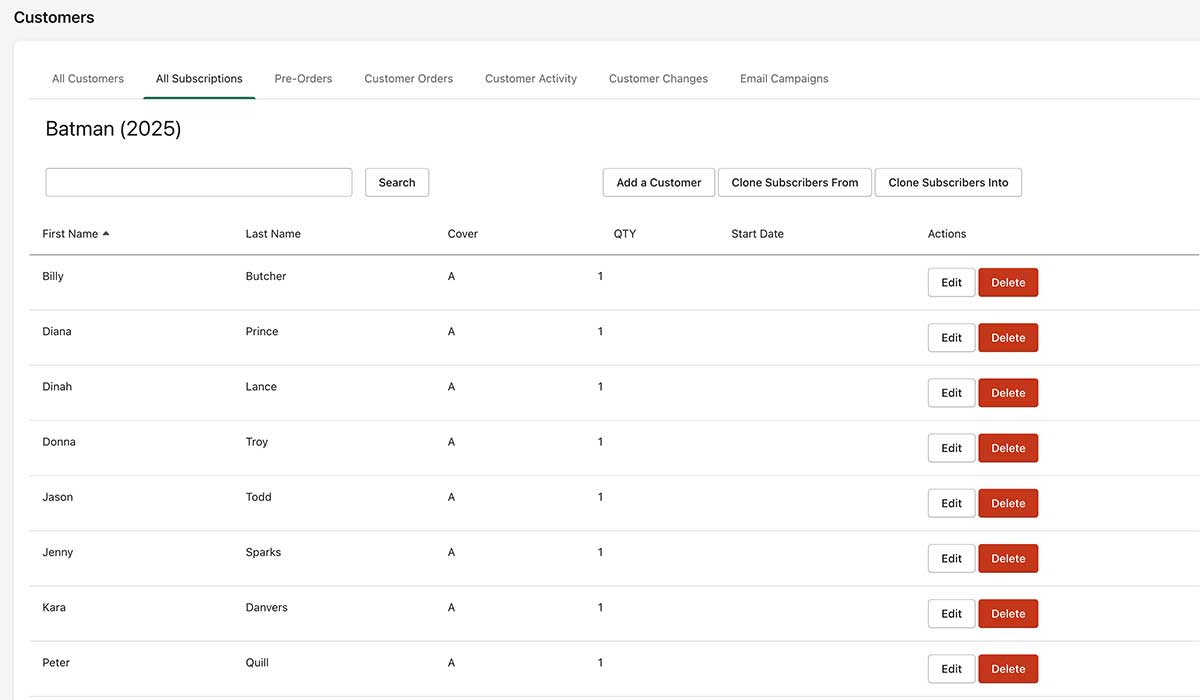
There's Batman (2025) all up to date!
Troubleshooting
Can't see all subscriptions – Check the location filter and ensure you're viewing "All Locations" if needed
Search not finding titles – Try searching by different criteria (just a piece of the overall title) and check for typos
Edit Subscription button not working – Ensure you have proper permissions and try refreshing the page