

Overview & When to Use
What this feature does
Where to Get Distributor Files provides step-by-step instructions for downloading FOC files from Diamond, Lunar, and PRH distributors. Each distributor has a different portal and process for accessing these critical ordering files.
When to use it
When you need to download FOC files for weekly ordering
When setting up your ordering process with different distributors
When you can't find the FOC files in your distributor portals
Prerequisites
Active accounts with Diamond, Lunar, and/or PRH distributors
Login credentials for each distributor's portal
Access to the FOC ordering sections in each portal
Key terms
FOC (Final Order Cutoff) – The final deadline for placing orders with distributors
FOC Files – Downloadable files containing product data for ordering
Distributor Portal – Online platform where you access ordering and account information
How to Get Distributor Files
Step-by-step
Getting FOC Files from Diamond
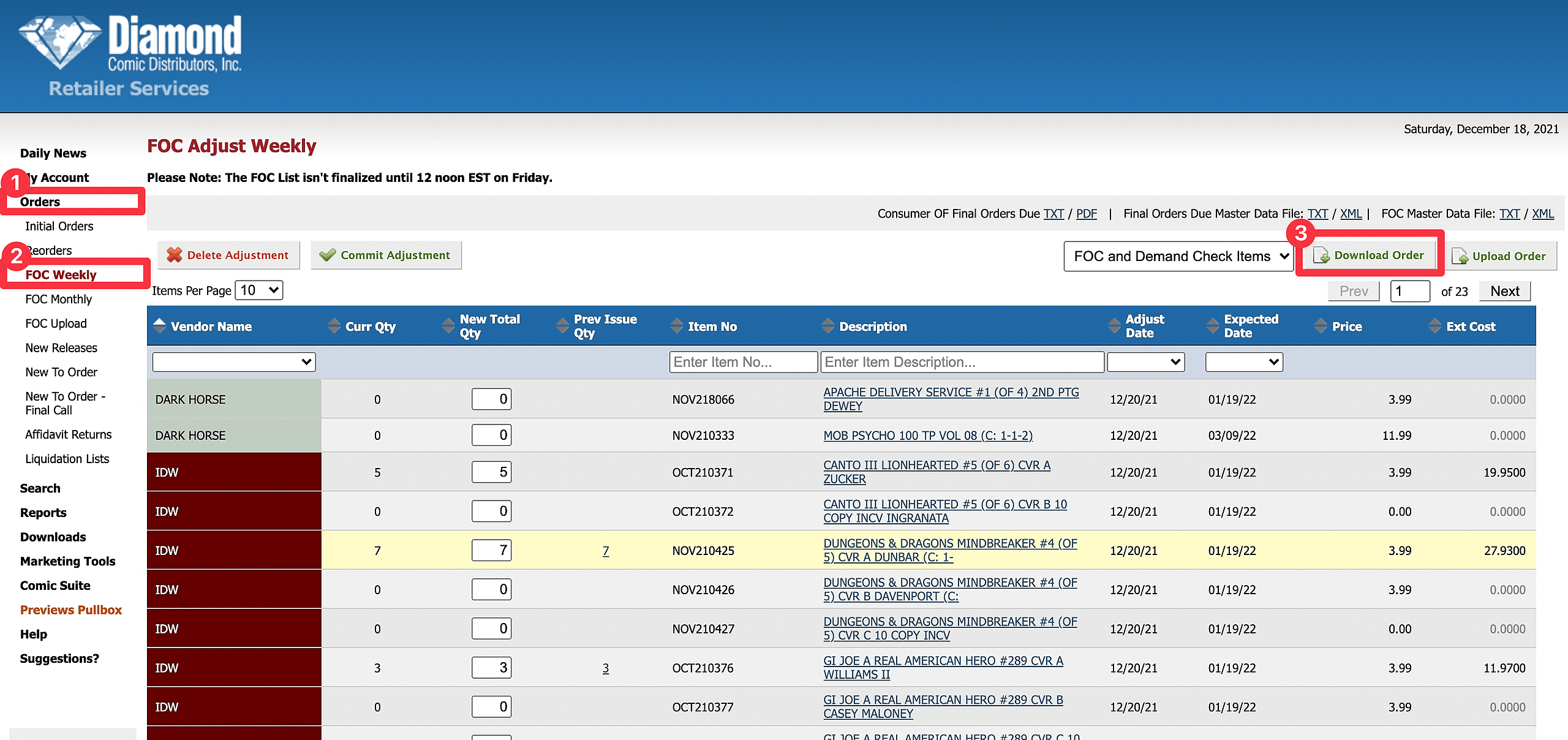
Go to the Diamond Retailer Services Portal at https://retailerorders.diamondcomics.com/.
Log into your Diamond account using your credentials.
Navigate to Orders
FOC Weekly in the main menu, look for the "Download Order" button in the upper right corner.
Click the "Download Order" button to download your FOC file.
Save the file for importing into Manage Comics.
What you should see
Diamond: "Download Order" button in the upper right corner of the FOC Weekly page
Downloaded files ready for import into Manage Comics
Getting FOC Files from Lunar
Go to the Lunar Distribution portal at https://www.lunardistribution.com/.
Log into your Lunar account using your credentials.
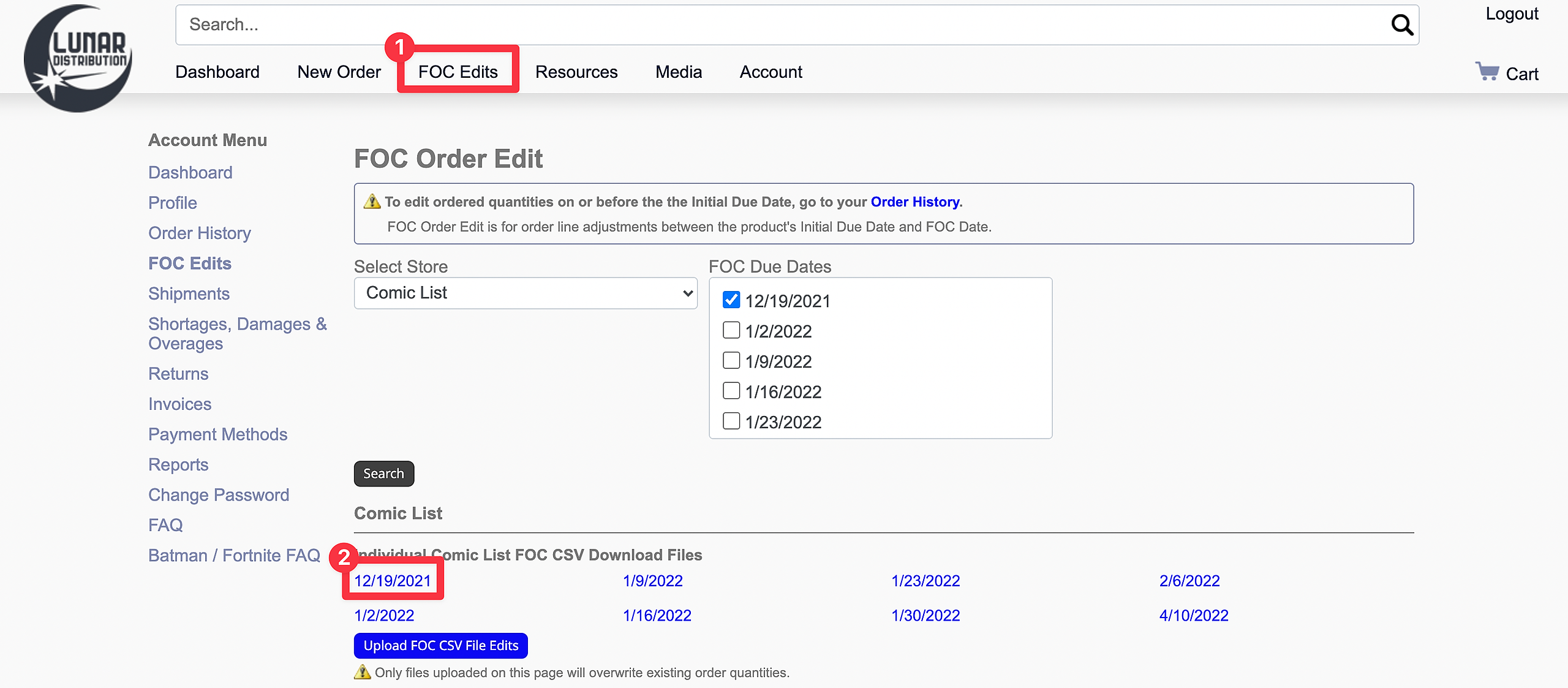
Navigate to FOC Edits in the main menu.
Click on the current FOC you would like to work on.
Access the FOC file from the selected week.
Download the file for importing into Manage Comics.
What you should see
Lunar: FOC Edits section with current FOC weeks available for selection
Downloaded files ready for import into Manage Comics
CSV files containing product data and ordering information
Getting FOC Files from PRH (Penguin Random House)
Go to the PRH Self Service site at https://selfservice.penguinrandomhouse.biz/.
Log into your PRH account using your credentials.
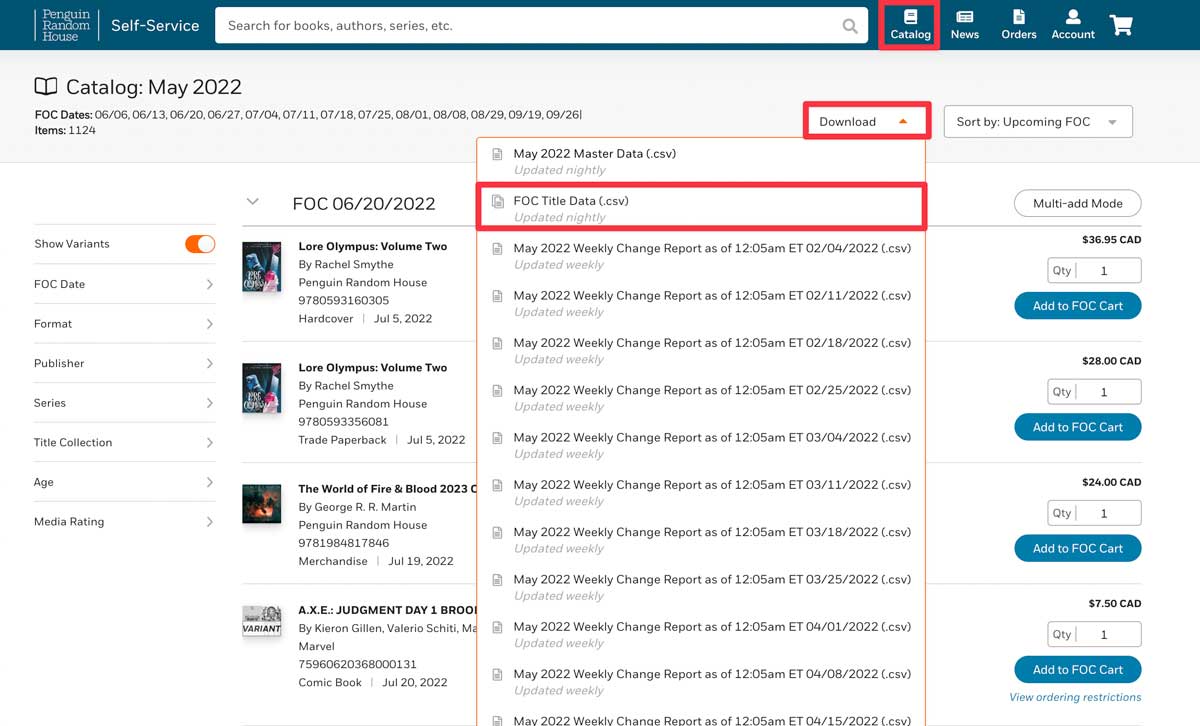
Navigate to a monthly catalog in the system.
Click the "Download" dropdown menu.
Select "FOC Title Data (.csv)" from the dropdown options.
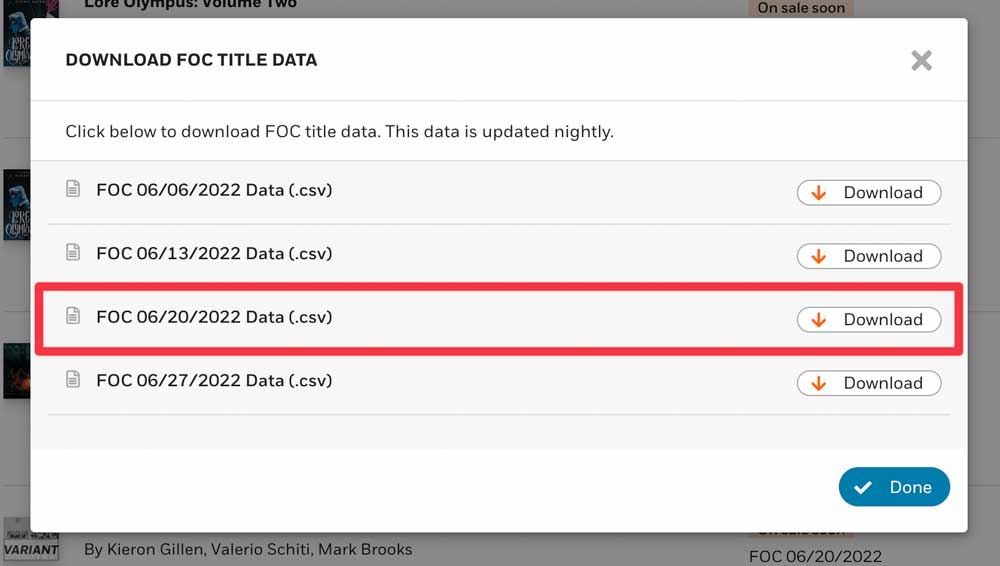
Choose the FOC week you're looking for from the selection window.
Download the CSV file for importing into Manage Comics.
What you should see
PRH: "Download" dropdown with "FOC Title Data (.csv)" option in monthly catalogs
Downloaded files ready for import into Manage Comics
CSV files containing product data and ordering information
Note that PRH FOC files do not include current QTY ordered information
Tips
Bookmark the distributor portal URLs for quick access
Download FOC files regularly to stay current with available products
Keep your distributor login credentials secure and easily accessible
Download files immediately when available to avoid missing ordering deadlines
Troubleshooting
Can't find the "Download Order" button on Diamond – Ensure you're in the FOC Weekly section, not the main orders page
Lunar FOC Edits not showing current week – Check that you're logged in with the correct account and have access to FOC features
PRH "FOC Title Data (.csv)" not in dropdown – Verify you're in a monthly catalog that has items currently on FOC
Downloaded file won't open – Check that the file downloaded completely and try downloading again
Missing product data in PRH files – Note that PRH FOC files don't include current QTY ordered, this is normal